Try nanoCAD for 30 days
Generate a trial license, download the installer, and keep your serial number handy during setup.
- MAX editionmodules included
- 30 dayslicense term
- 1 computerIndividual license
- 1Account
- 2License
- 3Download
Preparing your trial…
We’re checking whether you already have a license.
Already have an account? Sign in
Installation and activation
Get started in three steps
Check the requirements, install nanoCAD 26, and activate your license in the Registration Wizard.
- 01
Install nanoCAD
Run the .exe file, choose your installation language and follow the prompts.
- 02
Enter your serial number
Open the Registration Wizard and paste the serial number shown on this page.
- 03
Activate the license
Confirm your account email address and request your license file online.
Installation guide
Install nanoCAD 26
Finish installing the program before registering your license.
- 01
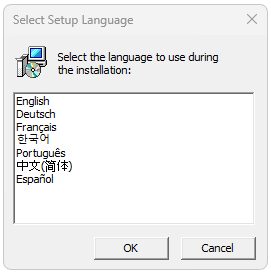
Choose the installer language
Open the installer and choose your language. The example shows Spanish (Español) . Accept the license agreement to continue.
- 02
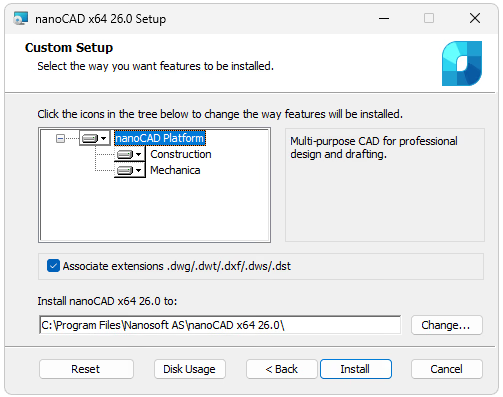
Configure the installation
Select the modules you want to install. We recommend keeping the default installation folder and associating DWG, DWT, DXF, and DWS files with nanoCAD.
- 03
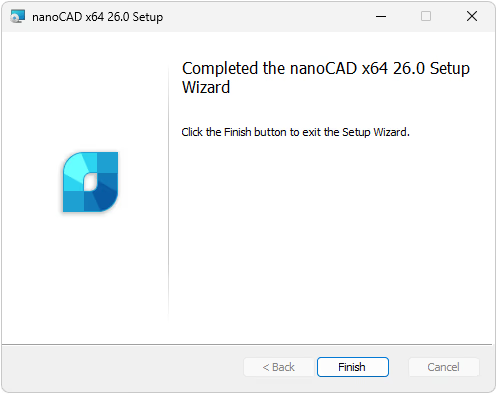
Finish the installation
Click Install (Instalar) and, when installation is complete, click Finish (Finalizar). The Registration Wizard will open.
You can also open it from Start > nanoCAD x64 26.0 > Registration Wizard.
Registration and activation guide
Register your trial license
Keep this page open so you can copy the serial number. Use the same email address you used to create your account.
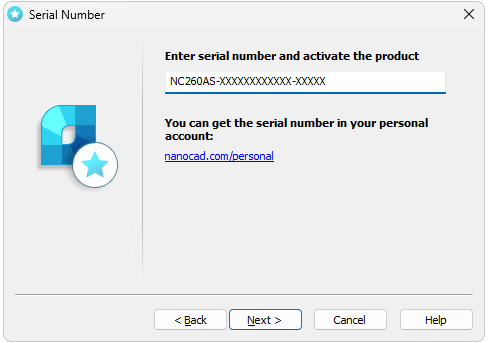
- 01
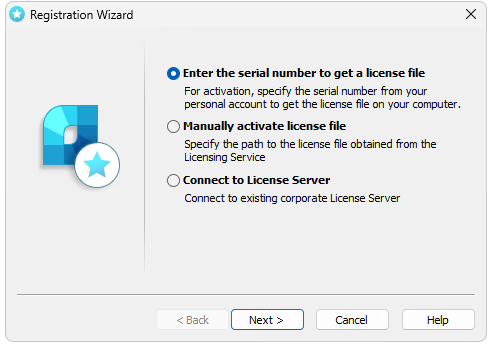
Enter the serial number
Select Enter a serial number to obtain a license file, paste the number generated on this page, and continue.
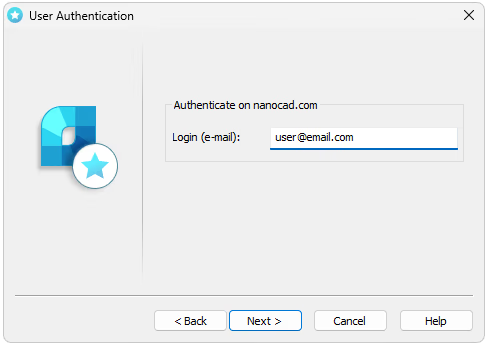
- 02
Confirm your email address
Enter the email address for your nanoCAD México account, then click Next.
- 03
Activate your license online
Select Request the license file online. The wizard will download and save the file, then activate nanoCAD automatically.
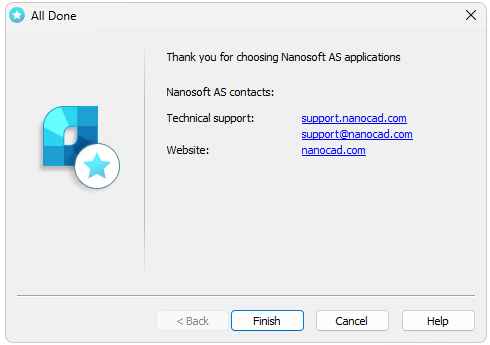
When activation finishes, the license is saved in
C:\ProgramData\Nanosoft AS\RegWizard\Licenses.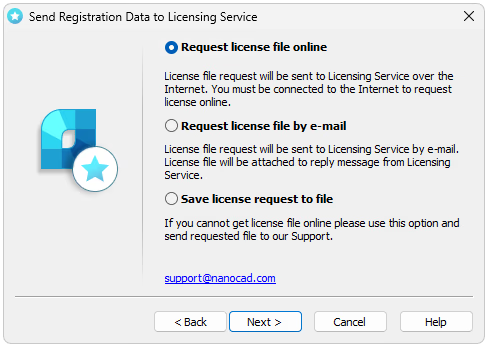
Before you install
System requirements
nanoCAD 26 runs on 64-bit Windows. Online activation requires an internet connection.
| Component | Minimum | Recommended |
|---|---|---|
| Operating system | 64-bit Windows 10 or 11 | 64-bit Windows 10 or 11 |
| Processor | 2 GHz | 3 GHz or faster |
| RAM | 4 GB | 16 GB or more |
| Display | 1920 × 1080 | 3840 × 2160 |
| Graphics | GPU with 1 GB of memory | GPU with 4 GB of memory, OpenGL 2.1 or DirectX 11 |
| Storage | 7 GB available | 7 GB or more |