You can try automating a drawing task before you know how to write LISP. In this example, we ask ChatGPT to draw a five-pointed star, then check each version in nanoCAD.
CAD programs such as AutoCAD and nanoCAD use LISP for routine drafting tasks and calculations. A small drawing makes a good first test because you can see exactly what the code did.
Follow the exchange below to see how each correction changes the drawing.
Load and run a LISP routine in nanoCAD
First, here’s how to run the code you’ll get from ChatGPT.
Paste the code into a plain-text editor and save it with the .lsp extension, for example my-application.lsp.
In nanoCAD, choose Manage → Applications → Load Application. Select your .lsp file in the dialog and load it.
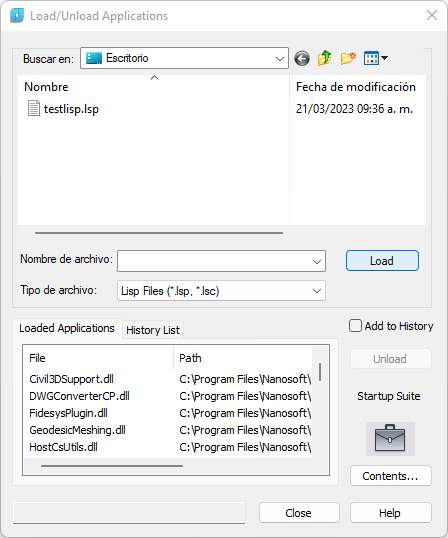
At the command line, type the name of your function and press Enter. You can also type its first few letters and use the arrow keys to select it from the suggestions.
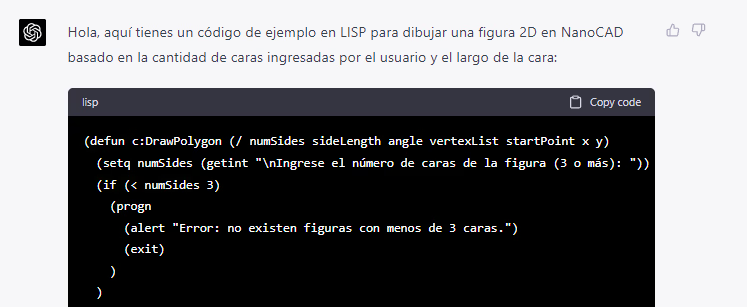
How to use ChatGPT to generate LISP code
Give ChatGPT a specific drawing task. In this example we want a five-pointed star in nanoCAD model space.
Start with this prompt: “Write a LISP command called STAR that draws a five-pointed star in nanoCAD. Ask me to enter the diameter of the star so I can set its size."
You will get a response with the code and steps to execute it.
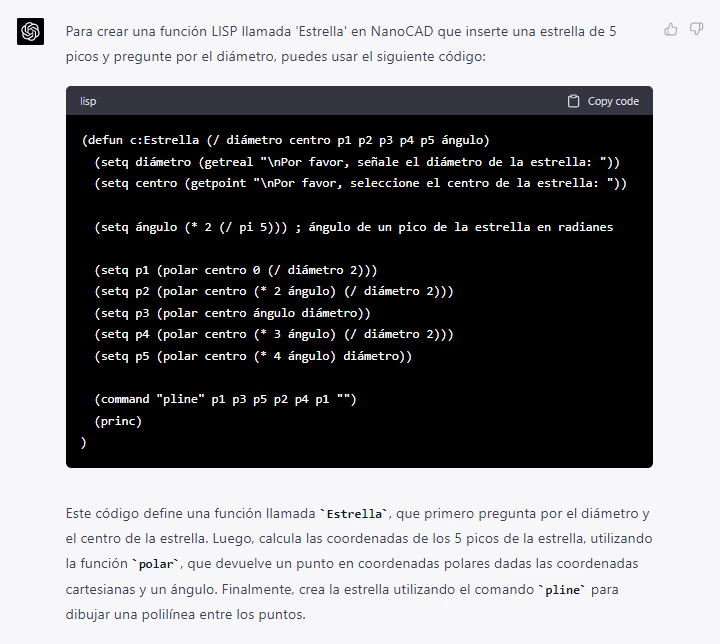
Copy the code into a plain-text file ending in .lsp. I called mine testlisp.lsp. Load it in nanoCAD as described above.
Type STAR at the command line to run the routine.

I entered 100 for the diameter and placed the center at (0, 0). Here’s what nanoCAD drew.
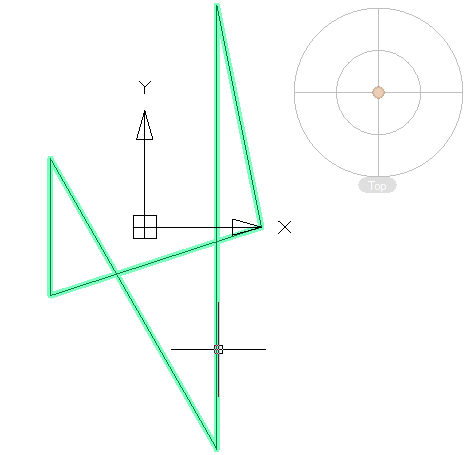
The first drawing has five points, but they don’t form a star. We need to describe the shape more precisely.
Continue in the same conversation so ChatGPT can work from its previous code.
Describe what you see: “The code runs, but the five points aren’t arranged symmetrically around the center.".
Save the revised code, reload it in nanoCAD and run the command again. Figure 5 shows the result.
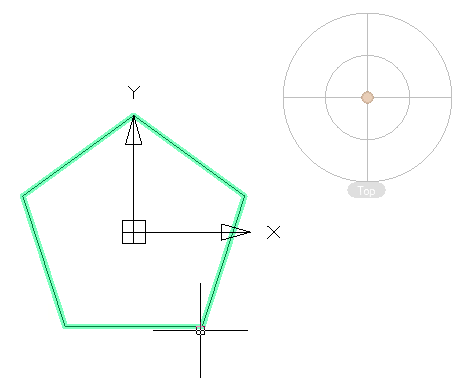
This time we got a pentagon. The routine still needs the five inner vertices between the outer points.
Here’s how I described the next change: “This draws a pentagon. A star has five outer points and five inner vertices. Put the inner vertices on a smaller circle, alternating with the outer points. Ask for both diameters.".
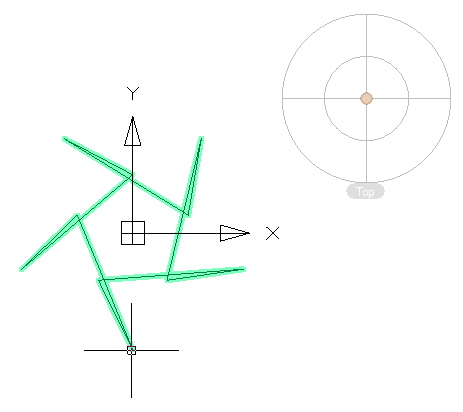
The new routine asks for the inner diameter. I entered 50.
The points are nearly right, but the routine connects them in the wrong order. My next message was: “Check the angle of the inner vertices. Point p2 should be where p10 is now.".
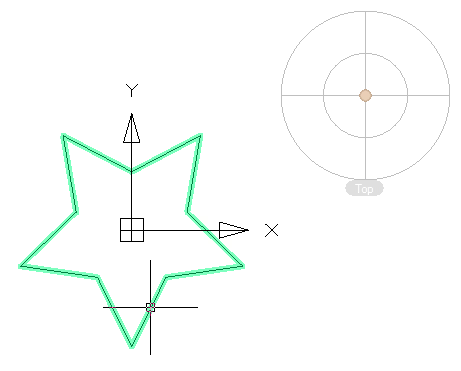
The shape is right. One more change will give it the orientation I wanted: “Rotate the finished star by 180 degrees."
Save the revised .lsp file and reload it in nanoCAD. Run STAR again and enter the two diameters.
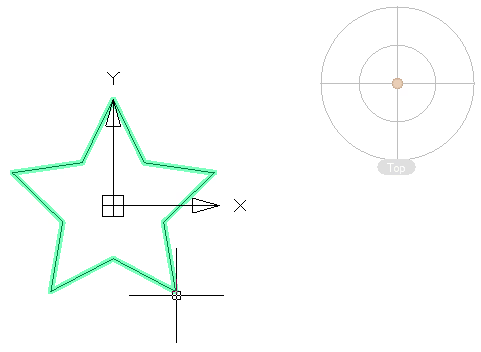
After five attempts, the routine draws a star from three inputs: the outer diameter, the inner diameter and the insertion point. Each time, we could describe the problem by looking at the drawing.
Here is the final STAR routine:
(defun c:Star (/ outerDiameter innerDiameter center p1 p2 p3 p4 p5 p6 p7 p8 p9 p10 angle angleIncr plineId)
(setq outerDiameter (getreal "\nEnter the outer diameter: "))
(setq innerDiameter (getreal "\nEnter the inner diameter: "))
(setq center (getpoint "\nSelect the center of the star: "))
(setq angleIncr (/ pi 5)) ; Angle between adjacent vertices, in radians
(setq angle (- (/ pi 2) angleIncr)) ; Starting angle
; Outer vertices
(setq p1 (polar center angle (/ outerDiameter 2)))
(setq angle (+ angle (* 2 angleIncr)))
(setq p3 (polar center angle (/ outerDiameter 2)))
(setq angle (+ angle (* 2 angleIncr)))
(setq p5 (polar center angle (/ outerDiameter 2)))
(setq angle (+ angle (* 2 angleIncr)))
(setq p7 (polar center angle (/ outerDiameter 2)))
(setq angle (+ angle (* 2 angleIncr)))
(setq p9 (polar center angle (/ outerDiameter 2)))
; Inner vertices
(setq angle (+ angle angleIncr))
(setq p10 (polar center angle (/ innerDiameter 2)))
(setq angle (+ angle (* 2 angleIncr)))
(setq p2 (polar center angle (/ innerDiameter 2)))
(setq angle (+ angle (* 2 angleIncr)))
(setq p4 (polar center angle (/ innerDiameter 2)))
(setq angle (+ angle (* 2 angleIncr)))
(setq p6 (polar center angle (/ innerDiameter 2)))
(setq angle (+ angle (* 2 angleIncr)))
(setq p8 (polar center angle (/ innerDiameter 2)))
(setq plineId (entlast))
(command "pline" p1 p2 p3 p4 p5 p6 p7 p8 p9 p10 p1 "")
(setq plineId (entlast))
; Rotate the star 180 degrees
(command "rotate" plineId "" center 180)
(princ)
)
What the example shows
The star is a small exercise, but the process applies to other routines: describe the result you need, run the code on a sample drawing and tell ChatGPT exactly what you see.
LISP can also create and edit layers or blocks, generate drawings, calculate areas and volumes, and automate labels and reports.
You can use the same test-and-revise approach when writing routines in other programming languages.